
 |
| Removing Duplicates from Excel Workbook |
Removing Duplicate entries from a Excel Workbook - Step by Step process
Many a times we come across with a situation that is so irritating in nature. If you have a raw form of huge data and you are told find and check if there is any duplicate in it all of a sudden sky will fall on your head. If you do it manually by checking it one by one it will take so many days to complete the work. But interestingly with the help of a computer you can do it very easily within no time.
If you have a excel file containing data let us take a very raw form of data. For illustration of the whole process I have taken a data sample which includes the name of the districts, population district wise, and the headquarter name and lastly the area of each district. Now just looking at the data field you will find that there are duplicates in it. Have a look at the data sample below:
 |
| Data sample showing the duplicate values |
By looking at the above sample we see that District Alipurduar is repeated 3 times and the others are marked with their respective colour codes. If you find the duplicate entries manually then it will take so much time. But here in MS Excel we can do it very easily. Just Click on anywhere in the data field and go to "Data" tab and then click on "Remove Duplicates" as shown below:
 |
| Click on remove duplicate to proceed |
Now a popup window will open where we have to un-check the columns that we don't need for our checking purpose. We have checked all four columns i.e. Name of the district, Area, Population and the Headquarters. Also please check the option that "my data has a headers" if your data has headers if not then un-check it.
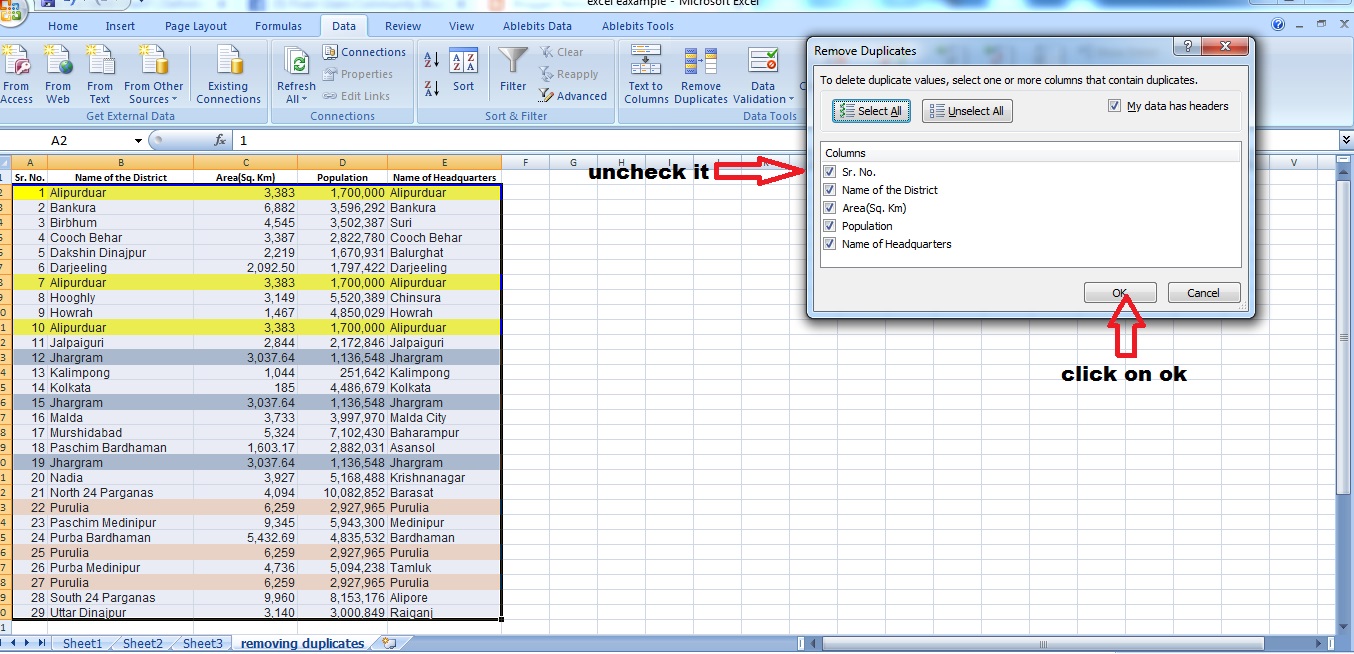 |
| Click finally on ok to see the results |
After Clicking on the OK Button a message box will appear showing the number of duplicate entries and final number of duplicate entries as shown below:
 |
| Message box showing the work accomplished |
Now see the final form of data with nor more duplicates in it.
 |
| final output |
You can watch my youtube videos for removing duplicates at youtube.
Also you can view creating a graph in Google spreadsheet. in youtube.


